UI Overview
The Simple Export UI integrates seamlessly into various areas of Blender's interface.
- Preferences: Located in Blender Preferences, this section stores global settings shared across all files, such as default paths, presets, hotkeys, and UI options.
- N-Panel: Accessible in the 3D Viewport, the N-Panel provides quick access to the Export List and key operations.
It can be toggled with the
Nkey. - Properties Panel (Output): Found in
Properties → Output. It features the same Export List and operations as the N-Panel. - Popup Panel: Provides a streamlined view of the Export List and key operations like assigning paths and presets.
Accessible via a hotkey (Default:
Shift + Alt + E) or easily assignable to the Quick Favorites. - Outliner Menu: Use the Right-Click Menu in the Outliner to export selected collections or assign paths and presets.
- 3D View Menu: A Simple Export menu can be accessed by right-clicking in the 3D Viewport. This menu provides quick access to export operations.
- Info Popups: Display feedback or error messages after key operations for clarity and troubleshooting.
The Export List
The Export List is available in the N-Panel, Properties Panel or the Popup Panel. It displays all export collections and provides tools for managing them.
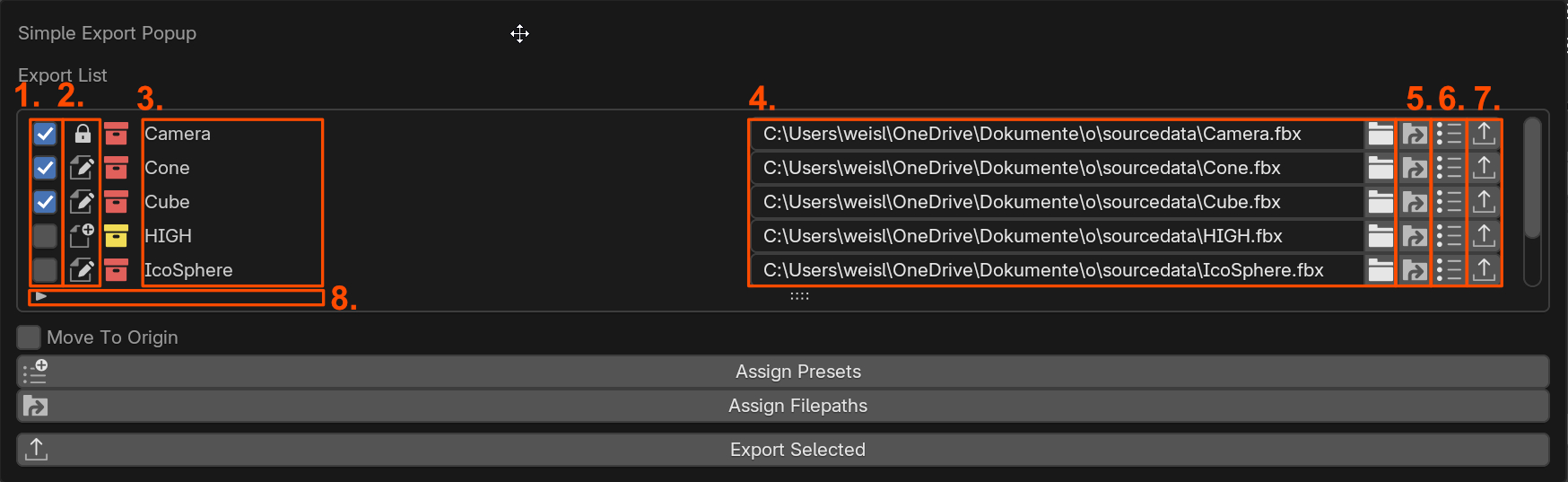
List Elements
- Selection: Toggle collection selection.
- Status: Displays the collection's state (e.g., New, Exists, Locked, Failed). When the last export failed the icon is clickable and shows the error message.
- Export Collection Info: Information about the export collection, including its name, filepath, root object, file format, and location based on the visibility settings of 4.
- Visibility Settings: Choose what information to display in the Export List.
- Show Collection Name: Displays the collection name.
- Show Filepath: Displays the export filepath.
- Show File Name: Displays the file name used for export.
- Show Collection Settings Displays various collection settings.
- Show Root Object: Displays the root object of the collection.
- Show Collection Offset: Displays the collection instance offset.
- Show File Format: Displays the file format used for export.
- Export Target (Filters): Filter and sort the list by format, addon preset, user group, directory, name, and more. See the Export Target section below.
- Export Collections: Exports all selected collections.
Export Target (Filters)
A dedicated Export Target filter panel sits above the collection list. It lets you narrow down the visible collections and sort them without changing any export settings.
- Addon Preset: Show only collections created with a specific addon preset.
- Format: Filter by export format (FBX, glTF, USD, etc.).
- User Group: Filter by the user-defined group assigned to a collection. Choose All User Groups, No User Groups, or a specific group name.
- Directory: Filter by the export directory. All Directories, No Directory (no path set), or a specific folder.
- Name search / Selected only: Type to filter by collection name; toggle to show only selected collections.
- More (expandable): Additional filters for Color tag, File Status (New / Exists / Locked / Failed), and Export Format Preset.
- Sort: Choose a sort mode (e.g. alphabetical) and toggle the direction with the ascending/descending arrow.
- Clear Filters: Resets all active filters back to All at once.
Export List Visibility Settings
TODO: - Gif with visibility settings
Operations
Batch operations allow users to apply settings or actions to multiple export collections simultaneously.
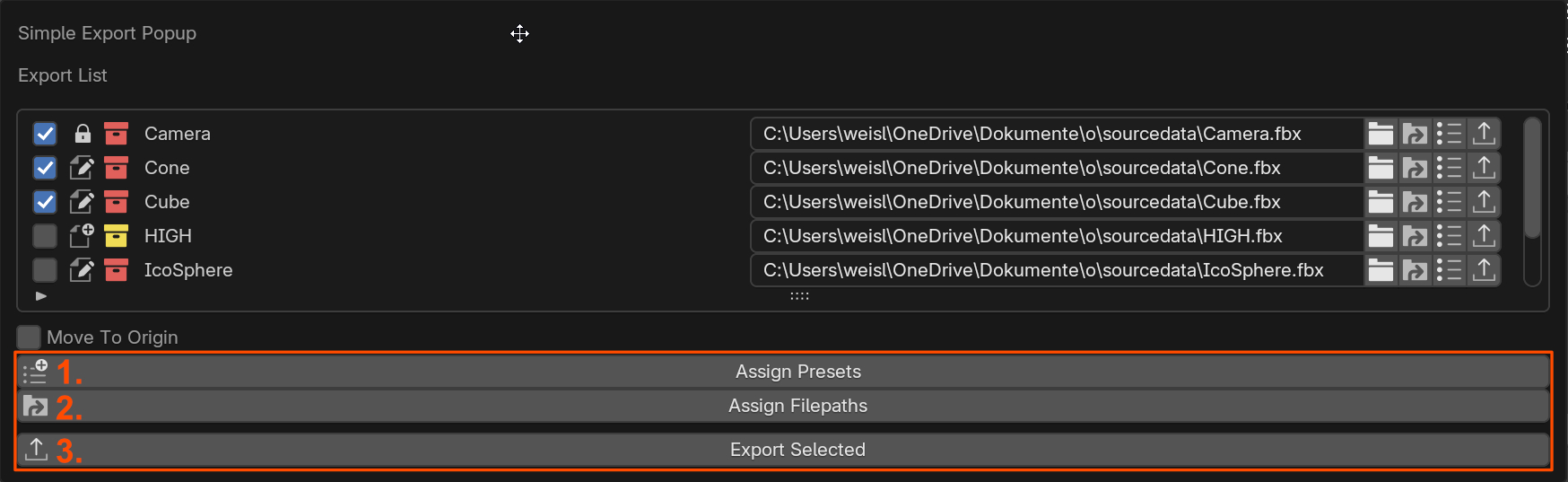
- Assign Presets: Apply presets to selected collections.
- Assign Filepaths: Assign file paths to selected collections.
- Export Selected: Export all selected collections.
Operations can be accessed from different locations in the UI and will affect if they are performed on the entire Export List or only a single collection.
- Collection Actions The small arrow inside the UIList allows you to access the collection actions. These operations for setting the filepath, assigning presets and different visibility, and removing options affect a single collection.
- Export Collection The Export Collection button exports this collection.
- UIList Operations These actions affect the UIList and select or deselect all or create a new export collection.
- Batch Operations The Batch Operations apply to all selected collections of the export list.
Simple Export Panel
This is the main panel for managing export collections, formats, and settings. It is available in the N-Panel or Properties Panel. It contains the selection of the used export settings and an Export List.
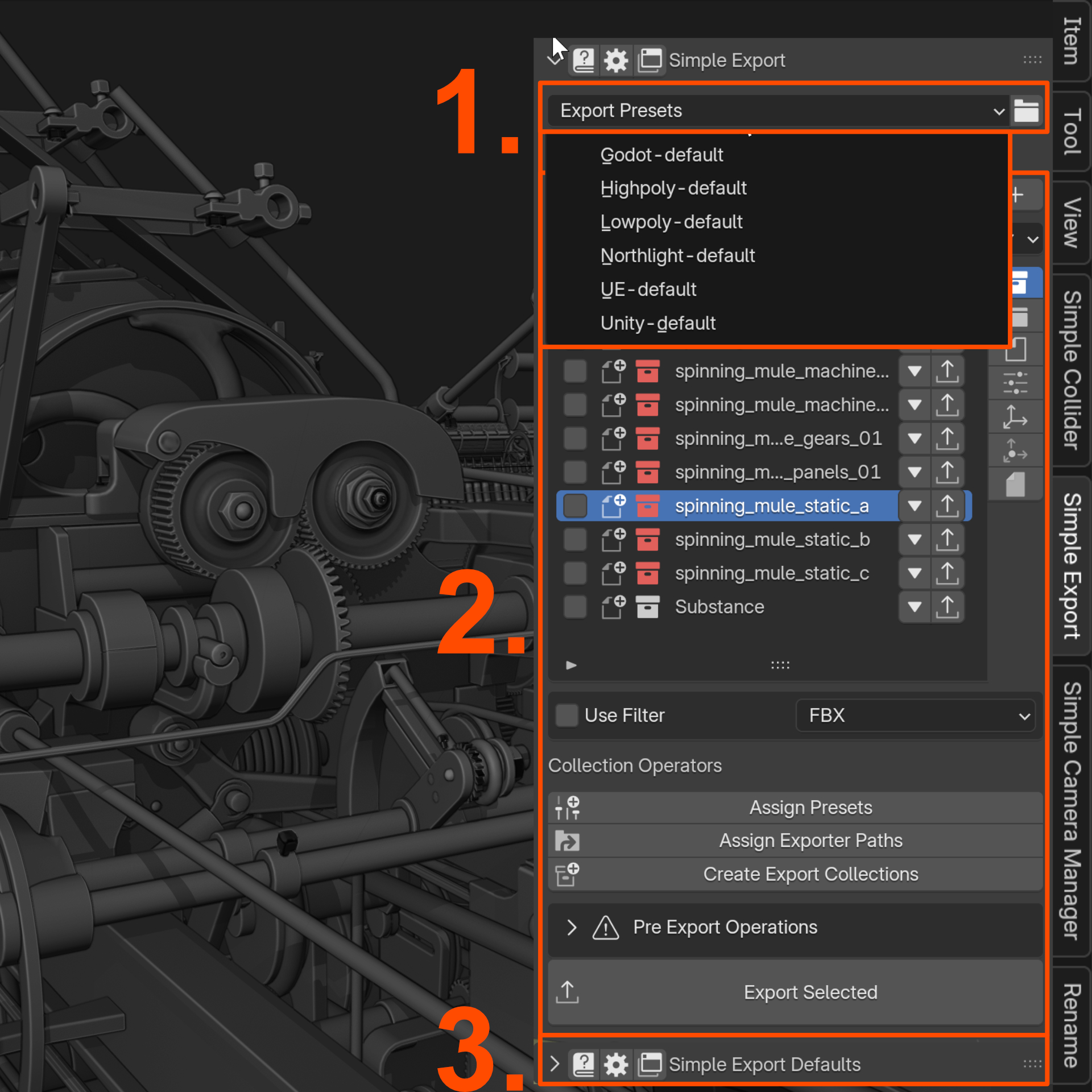
- Export Preset: Select the export preset for the current export format. The addon ships with presets for Godot, Unreal, Unity and more. You can also create your own presets.
- Export List: Displays the Export List, which contains all export collections and all operations outlined in the next section.
- Simple Export Defaults: You can also see the Simple Exports Defaults here.This allows you to create your own Simple Exporter presets that can then be used for creating export collections and selected in the preset menu.
Select Presets:
Simple Export Defaults
The Simple Export Defaults allow you to create your own presets for the Simple Exporter. These presets can then be used to create export collections and selected in the preset menu.
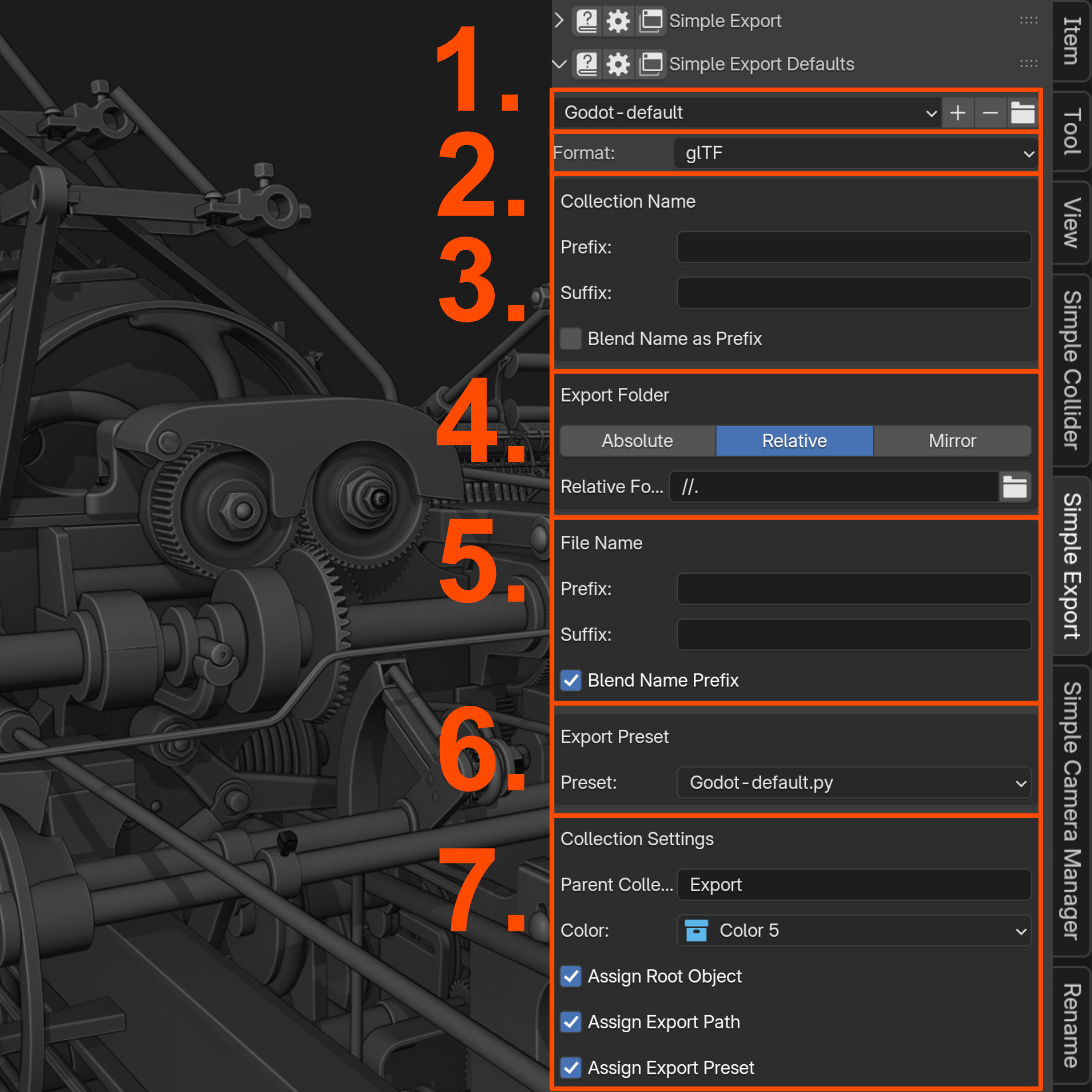
- Export Format Preset: The preset menu lets you select, create, or delete addon presets. The current preset can be pinned as the default using the pin icon.
- Export Format: Select the export format (FBX, glTF, USD, etc.) used for newly created export collections.
- Collection Name: Prefix, separator, and suffix options, plus an option to use the blend file name as prefix. All newly created collections use these naming settings.
- Export Path: Define how export paths are generated — Absolute, Relative, or Mirror folder structure.
- File Name: Same prefix/separator/suffix options as Collection Name, but applied to the exported file name.
- Export Format Preset: Specify which Blender exporter preset file should be applied to newly created collection exporters. Use one of the built-in presets or one created via the standard Blender exporter.
- Collection Settings: Specify the parent collection, color tag, and whether root objects, presets, and filepaths should be assigned automatically on collection creation.
- Pre-Export Operations: Set the default pre-export operations (Move to Origin, Triangulate) for all newly created collections.
Properties Panel (Output)
The Simple Export Panel and Simple Export Defaults can also be found in Properties → Output. They provide the same
functionality as the N-Panel equivalents.
Pre Export Operations
Warning
These settings can only be applied when this addon is installed. They will not be performed when using the regular Blender exporter.

Pre-export operations are non-destructive modifications applied to mesh objects immediately before export. The original data is fully restored afterwards.
- Move to Origin: Moves the collection to the world origin based on its Collection Center or root object before exporting. Useful for game engine workflows (Unreal Engine, Unity) that expect assets at the origin.
- Triangulate Meshes: Adds triangulation to all mesh objects in the collection (including nested objects) before export and restores the original mesh data afterwards. The Keep Custom Normals option preserves custom split normals during triangulation.
Per-Collection Pre-Export Operations
The defaults above apply to all newly created collections. Individual collections can override these defaults in the Active Collection panel under the Pre-Export Operations collapsible section. This lets you, for example, triangulate only specific collections while leaving others untouched.
Outliner
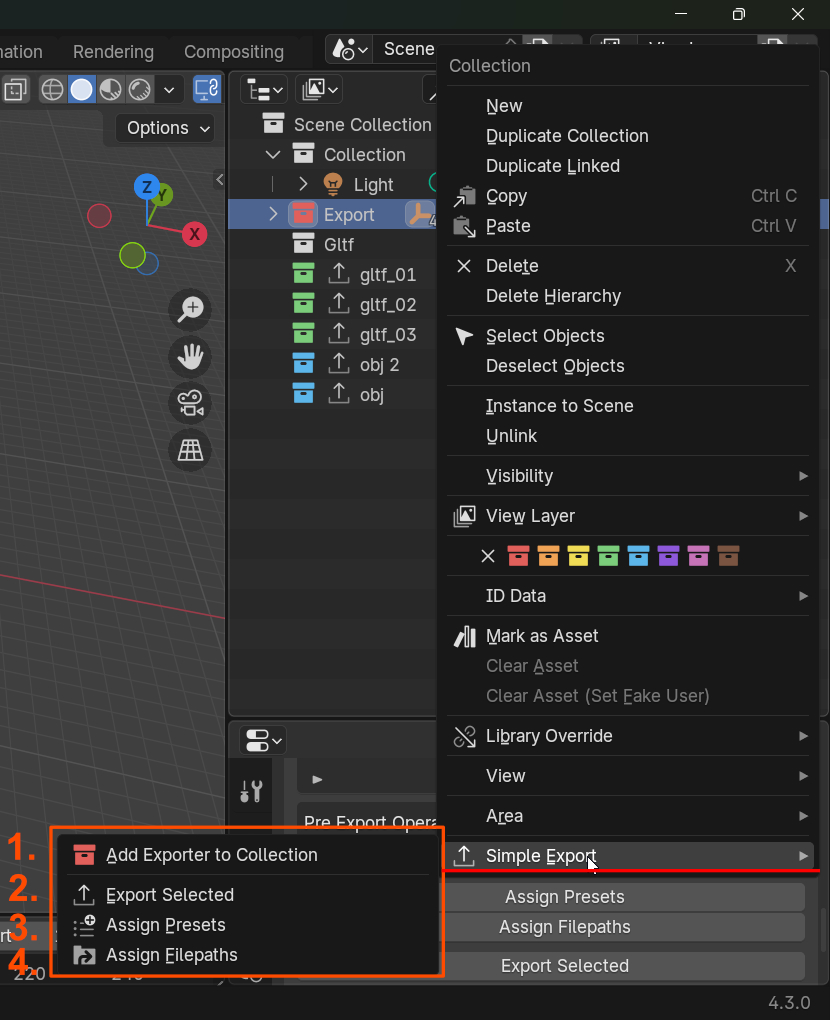
Right-click in the Outliner to perform export-related tasks. Outliner -> Right Click -> Simple Export.
- Add Exporter to Collection: Add an Exporter with all specified settings to the collection.
- Batch Operations:
Preferences
The preferences provide mostly the same settings as the Simple Export Defaults, but they are global settings that apply
to all files. They can be found in Edit → Preferences → Add-ons → Simple Export.
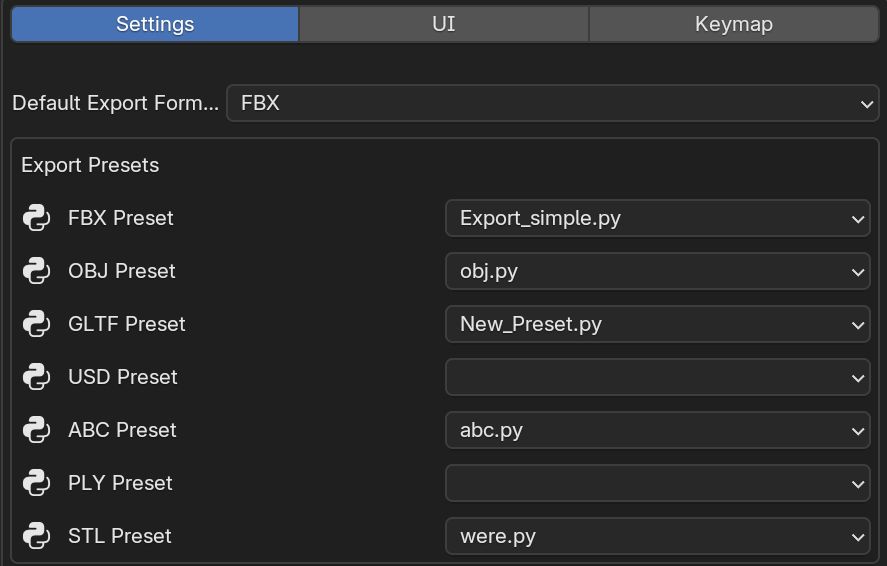
It allows you to set up default export formats, presets, paths, filename, collection name, collection settings that will be used when by default when opening a new Blender scene. The main difference to the Simple Export Defaults is that you can specify the default preset for each export format.
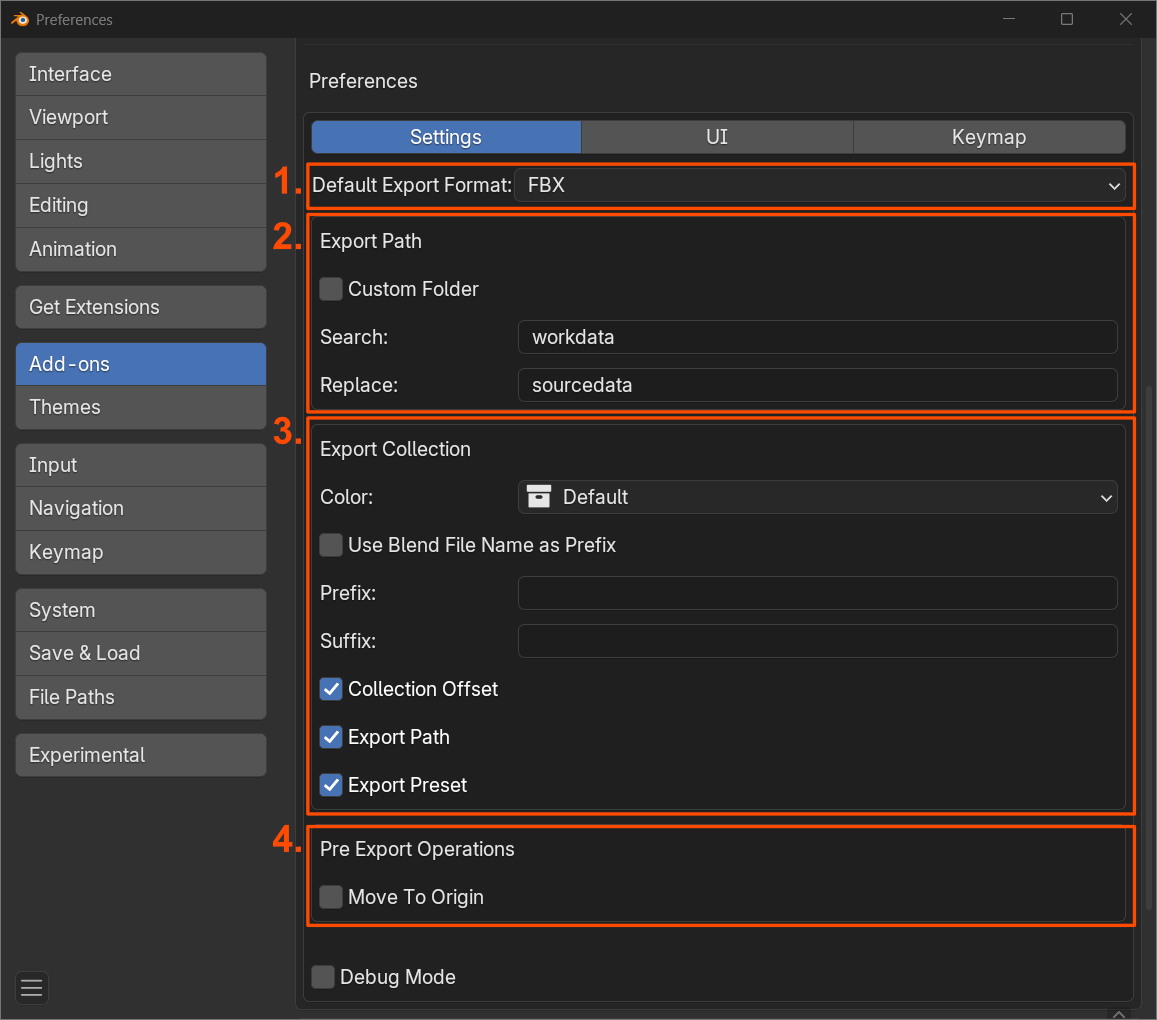
Specify which presets should be applied to the individual file formats by default.